Find out the SSD health of Apple Silicon computers, similar to CrystalDiskInfo
Anyone who, like me, grew up on Windows always checking the condition of drives with the freeware "CrystalDiskInfo" will painfully realize on MacOS that the software does not run on MacOS. Worse still, you will search in vain for free tools to find out the health of the hard drive/SSD.
Good thing there is a well-known command-line program that does this job excellently after all.
The solution is Homebrew + Smartmontools
First, you should make sure that the package manager "Homebrew" is correctly installed on your Mac. I would recommend this tool for every MacOS installation:
Here is a short guide to installing Homebrew on macOS:
- Open the Terminal on your machine.
- Paste the command /bin/bash -c "$(curl -fsSL https://raw.githubusercontent.com/Homebrew/install/HEAD/install.sh)" into the command line and follow the installation steps.
- Run the command brew --version to check whether Homebrew was installed successfully: One possible output indicating a correct Homebrew installation would be, for example, "Homebrew 4.3.14".
Next, smartmontools is installed:
brew install smartmontools
and with that, we're already done. Using
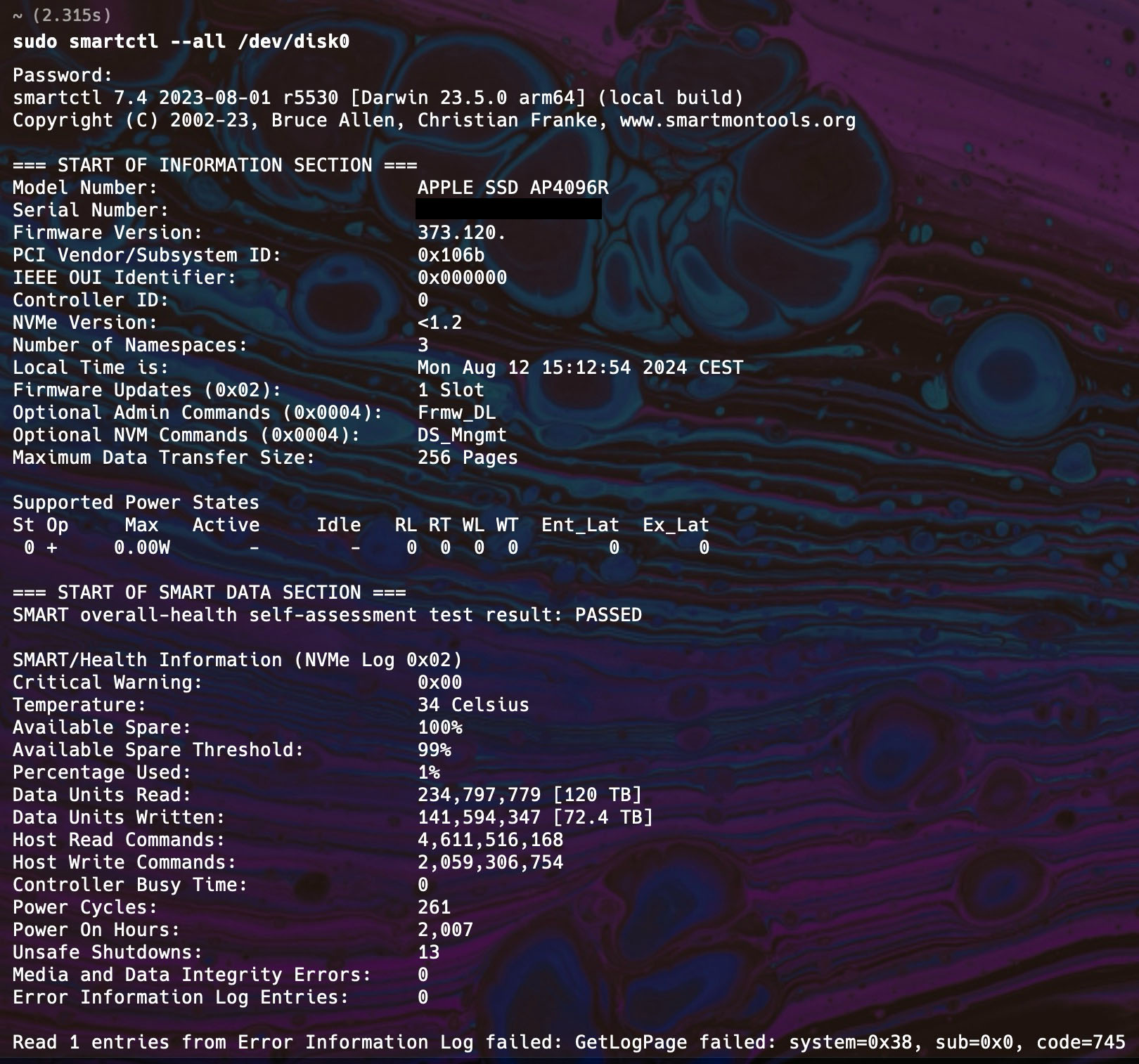
sudo smartctl --all /dev/disk0
you can now read out the disk information. What I found particularly interesting were the "Data Units Read" and "Data Units Written", in other words, the information about how many terabytes have already been read from and written to my MacBook SSD. The temperature and the remaining unprovisioned SSD storage (Over-Provisioning, OP), given as a percentage, are also interesting.
It is completely normal for the tool to throw an error after the first lines of information: since Apple's own SSD controller is not fully compatible with the SMART command set, errors occur with some individual commands.