Import KeePass file into Apple Passwords
With the release of Apple’s latest operating systems, it was time for me to turn my back on KeePass (or rather the Electron-based fork KeeWeb in my case) after many years. While in KeeWeb I still had to take care of cross-device synchronization myself, Apple now handles the whole thing via iCloud. That said, I can still access my passwords on Windows as well.
Lots of passwords, no time!
So I needed a solution for importing the nearly 850 passwords from the KeePass format into Apple’s solution. Thankfully, Apple provides its own import feature that accepts a .csv file. Unfortunately, the .csv file from KeePass is in the wrong order, so I wrote a small script that makes importing into Apple Passwords much easier.
All methods presented here require Python 3.2 to be installed as the scripting language.
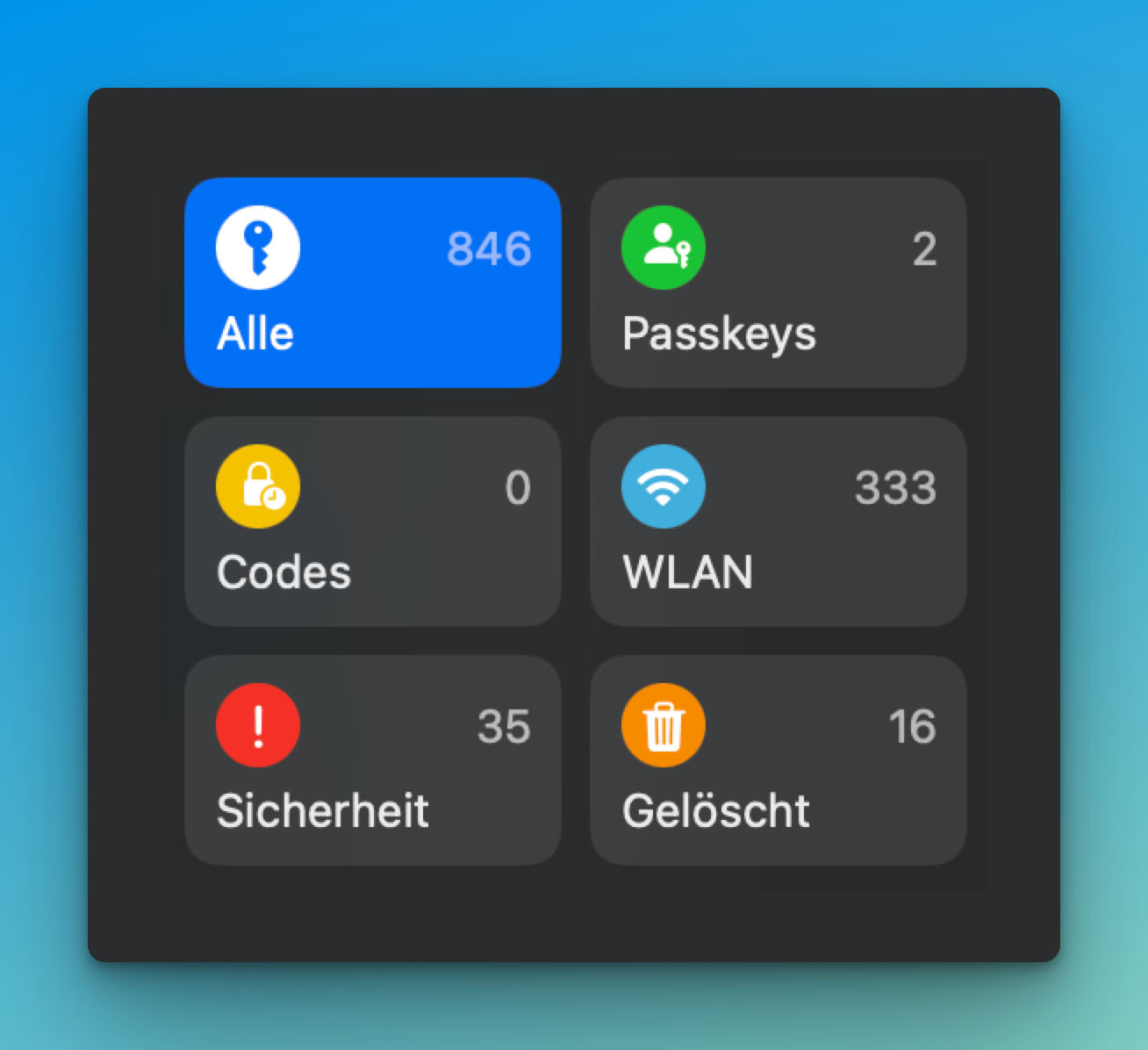
Method 1: KeePass (Windows) CSV export
This is the route I chose. With a KeePass 2 installation on Windows, a CSV file can be exported, and this can then be converted into the correct format with a simple Python script:
- Installation of KeePass 2 on Windows
- Open the KeePass database
- Export the KeePass database as a .csv
- This script in the same folder and start it with the file names adjusted
- Start the import in Apple Passwords on MacOS 15
Method 2: Transform the .kdbx file directly
It is also possible to take the direct route from the .kdbx file to a CSV file suitable for import using the "pykeepass" library. To do this, simply place the KeePass database file in the same folder as this script, adjust the file names, and after starting the script, enter the password in the CLI. If Python initially refuses to run the script, you should check whether the library is installed properly. If not, this can easily be remedied with pip install pykeepass.
Method 3: .xml export from KeeWeb to .csv
As a third option, there is the export from KeeWeb into a very detailed .xml file, which can likewise be processed into a CSV file. To do this, choose export as a .xml file in KeeWeb, then use this script after adjusting the file names to generate the appropriate .csv file with Python.
Warning
I can only advise against keeping the .csv file on your hard drive any longer than absolutely necessary. After all, this file contains all passwords listed in unencrypted form.
In addition, it should be noted that OTP codes are currently not transferred, since, to my knowledge, KeeWeb cannot generate OTP codes.